DNS Configuration
DNS is the "phone book of the internet." When you type youtube.com,
DNS translates that name into a server IP address.
Why configure DNS separately?
Problem: DNS leaks
By default, DNS queries go through your ISP in plain text. This means:
- Your ISP sees every site you visit
- Your ISP can spoof DNS responses to block sites
- Even with a proxy, DNS queries can "leak" outside the tunnel
Solution: DoH via proxy
We'll configure DNS over HTTPS (DoH) — encrypted DNS queries that go through the proxy tunnel.
How to open DNS settings
All DNS settings are in one window with tabs.
- Open v2rayN
- Top menu → Settings
- Select DNS Settings
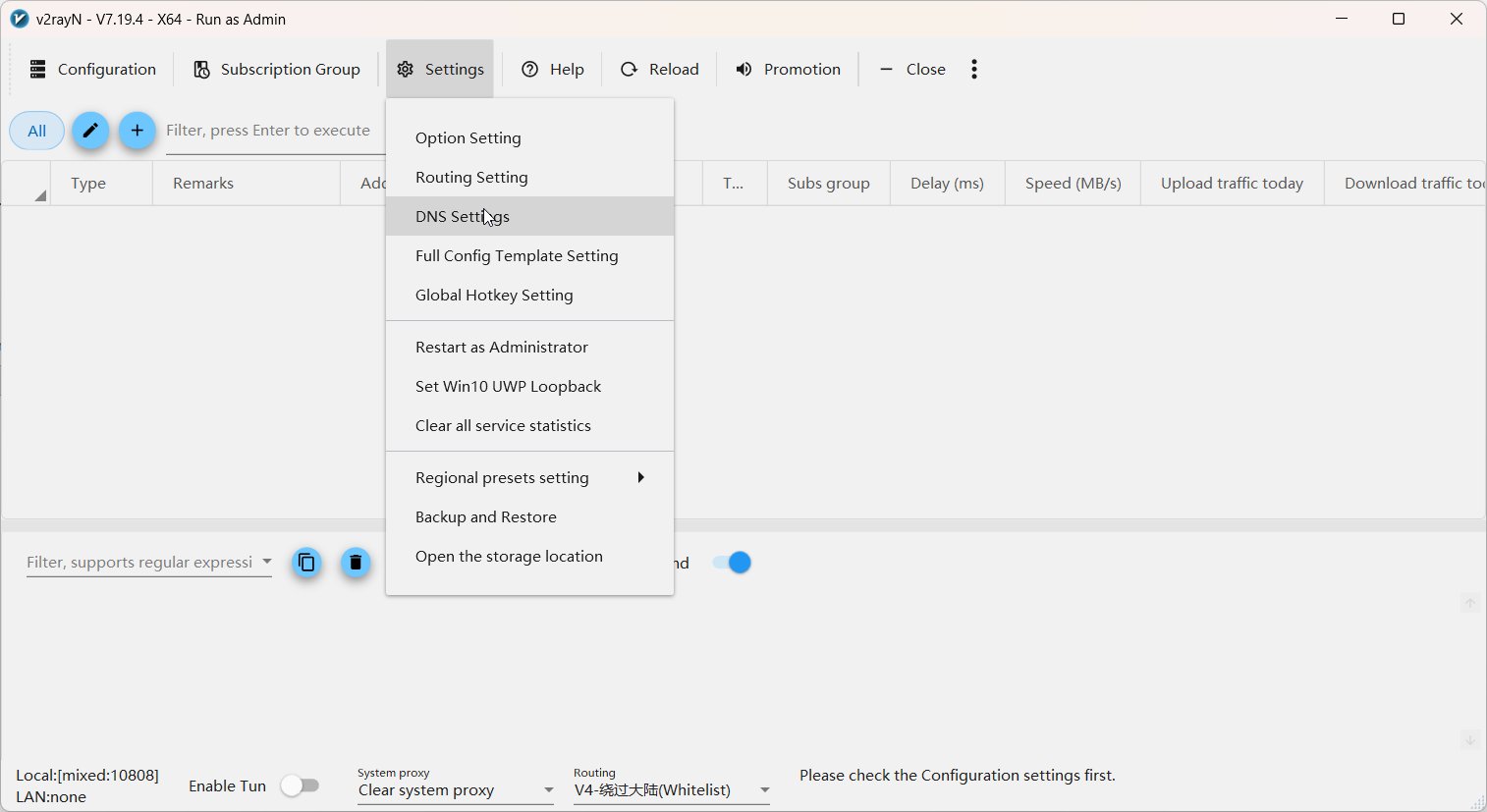
The DNS Settings window has four tabs:
| Tab | Purpose |
|---|---|
| Basic DNS Settings | Basic settings (don't touch) |
| Advanced DNS Settings | Advanced settings (don't touch) |
| V2ray Custom DNS | DNS for Xray core (HTTP/SOCKS proxy mode) |
| sing-box Custom DNS | DNS for sing-box core (TUN mode) |
We'll configure both — V2ray Custom DNS and sing-box Custom DNS.
Subsections
| Page | What we configure |
|---|---|
| V2ray Custom DNS (Xray) | V2ray Custom DNS tab — for system proxy mode |
| sing-box Custom DNS | sing-box Custom DNS tab — for TUN mode |
| Why Quad9 and Mullvad | DNS provider selection rationale |
Recommendation
Configure both tabs — so DNS works correctly when switching between modes (HTTP/SOCKS ↔ TUN).